
You are using an out of date browser. It may not display this or other websites correctly.
You should upgrade or use an alternative browser.
You should upgrade or use an alternative browser.
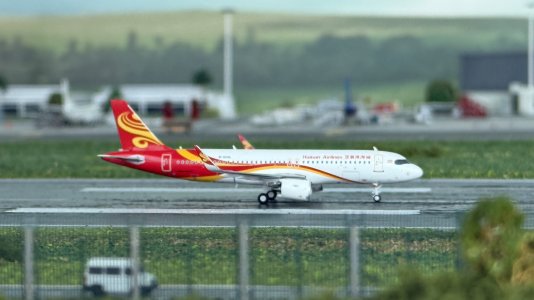
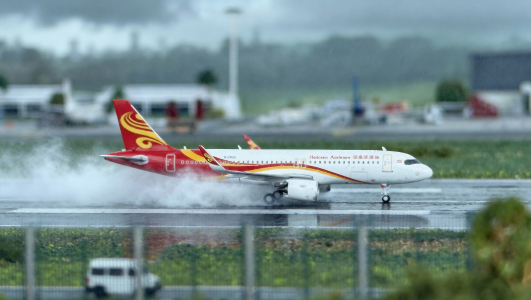
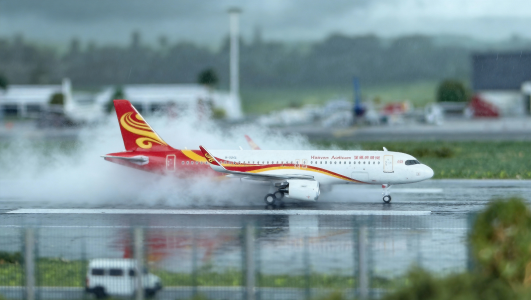
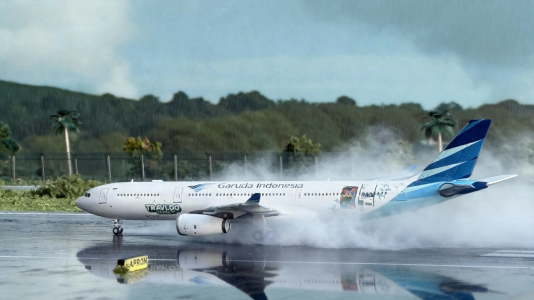
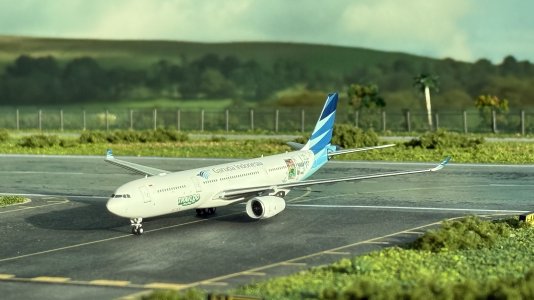
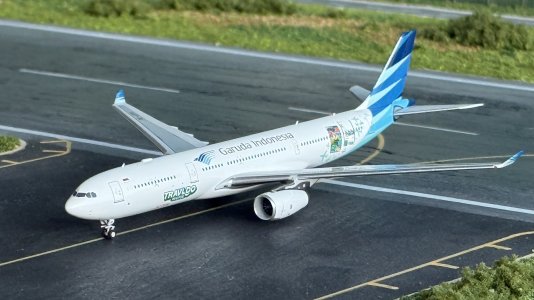
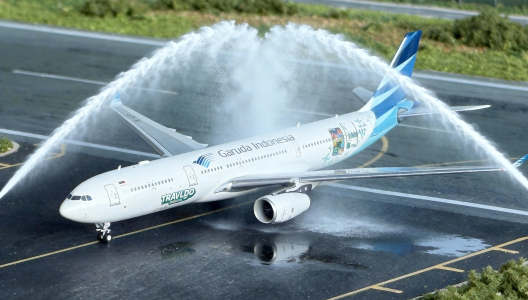
1st try the landing contrails by AI.
- Thread starter Steven G
- Start date

BubblesAviation
Well-known member
These shots look amazing! Are they photoshopped?

These shots look amazing! Are they photoshopped?
By the thread title, seems AI was used for these.
I like the water cannon salute. I personally don't use AI - I don't like it. I always do my edits on Photoshop.
When I had my 1:500 airport, I had some water salutes aswell

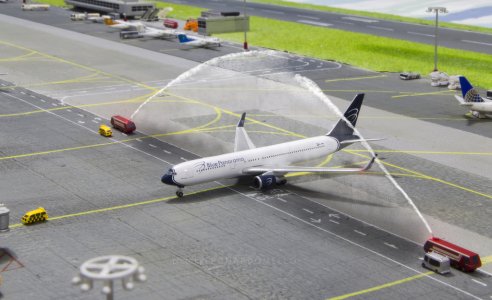
the AI version looks better, though. I like the reflections on the ground! Just needed the firetrucks

Charter
Well-known member
What a marvel!By the thread title, seems AI was used for these.
I like the water cannon salute. I personally don't use AI - I don't like it. I always do my edits on Photoshop.
When I had my 1:500 airport, I had some water salutes aswell
View attachment 73545
the AI version looks better, though. I like the reflections on the ground! Just needed the firetrucks

Steven G
Member
I make this by AI ,not photoshopThese shots look amazing! Are they photoshopped?

Can you put together a tutorial on editing photos with AI for those who aren't familiar with how to use it? In particular, I'm interested to see if AI can convincingly simulate open cargo doors...I make this by AI ,not photoshop
It’s pretty simple - I tried something similar with night lighting based on the ideas in this post. I used Gemini (gemini.google.com), as I find them the best for image-related stuff, though ChatGPT and Claude can probably do something similar. I’m not sure what tool @Steven G used.Can you put together a tutorial on editing photos with AI for those who aren't familiar with how to use it? In particular, I'm interested to see if AI can convincingly simulate open cargo doors...
With Gemini, you can create “gems,” which are basically just convenient macros for prompts that you want to use over and over again. Here’s what I used for mine:
I have a 1:400 model airport. When I upload a picture, I want to you modify the lighting effects according to the mode specified in the prompt, which should be interpreted case-insensitive. The modes are given as follows:
Night (Default if no prompt is given):
Modify the photo to make it look as if the photo was taken at night. Don’t add any new elements to the photo, and don’t change the perspective of the photo, but do try to create the effects made by the airport, GSE and aircraft lights (including the tail logo lights). If the background includes any elements of my house that appear out of place in an airport setting, replace it with the sky.
Golden Hour:
Modify the photo to make it look as if the photo was taken during golden hour, either at dawn or at dusk. Don’t add any new elements to the photo, and don’t change the perspective of the photo, but do try to create the effects made by the rising or setting sun, airport lights, GSE and aircraft lights (including the tail logo lights) where applicable. If the background includes any elements of my house that appear out of place in an airport setting, replace it with the sky.
Basically, whenever I open a new chat using this gem, these instructions are pre-loaded, and I can just upload photos from there on, and Gemini will do what I’ve told it to. You should be specific with your instructions so the AI doesn’t take too many liberties.
Edit: Here’s a quick demo using one of my photos. The prompt I gave Gemini was:
Here is the before:I want you to render the baggage hold doors open on this photo of a plane in my 1:400 model airport. Don’t add any elements or vehicles that were not already there to the picture, and don’t change the perspective. There is no large cargo door, so don’t add any doors for which there is no outline on the model plane. Do not open the passenger doors.
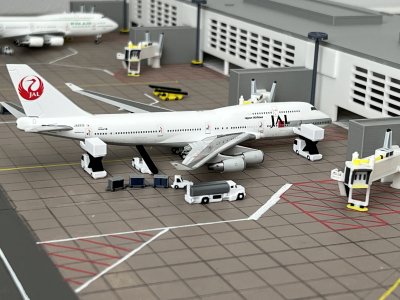
and after:
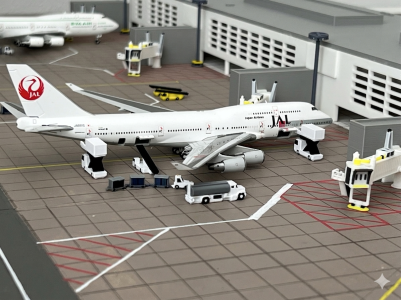
you’ll probably need to fiddle around with the prompt before you get exactly what you want, so expect to have a bit of patience. And remember to select the “create images” tool (aka Nano Banana)
Last edited:

bakejobb_23
Well-known member
It’s pretty simple - I tried something similar with night lighting based on the ideas in this post. I used Gemini (gemini.google.com), as I find them the best for image-related stuff, though ChatGPT and Claude can probably do something similar. I’m not sure what tool @Steven G used.
With Gemini, you can create “gems,” which are basically just convenient macros for prompts that you want to use over and over again. Here’s what I used for mine:
Basically, whenever I open a new chat using this gem, these instructions are pre-loaded, and I can just upload photos from there on, and Gemini will do what I’ve told it to. You should be specific with your instructions so the AI doesn’t take too many liberties.
Edit: Here’s a quick demo using one of my photos. The prompt I gave Gemini was:
Here is the before:
View attachment 75815
and after:
View attachment 75816
you’ll probably need to fiddle around with the prompt before you get exactly what you want, so expect to have a bit of patience. And remember to select the “create images” tool (aka Nano Banana)
This is awesome. I’ll have to give this a try later with some of my photos!
Looking forward to seeing the results!This is awesome. I’ll have to give this a try later with some of my photos!
bakejobb_23
Well-known member
I have it a go with some recent photos I took today. I used like 95% the same prompt, just to test out how it works before putting thought into my own.
Original:
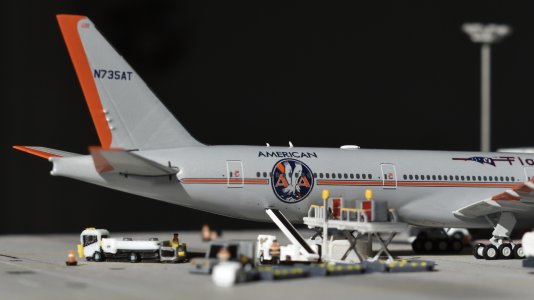
Gemini’s attempts (All 3 are “golden hour”):
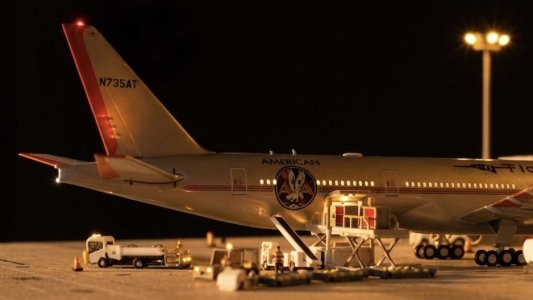
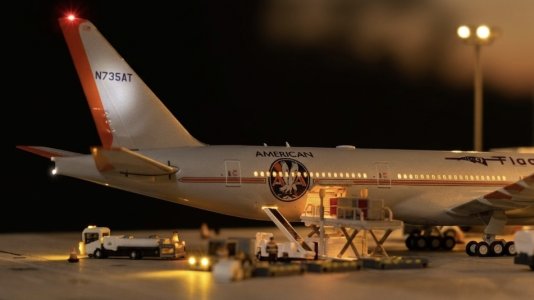
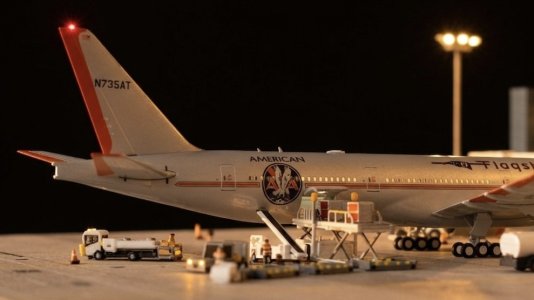
This third one turned out as my favorite, kept things very simple but just enough touch to it. I’ll have tor refine what my prompt is next time.
And another “golden hour” that turned out more at night:
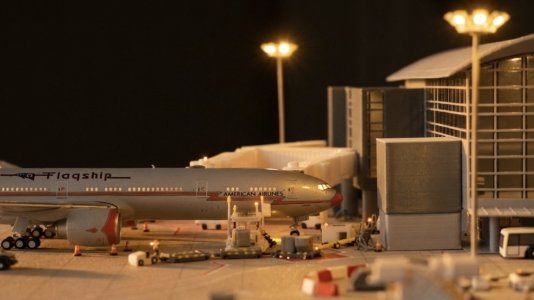
Original:
Gemini’s attempts (All 3 are “golden hour”):
This third one turned out as my favorite, kept things very simple but just enough touch to it. I’ll have tor refine what my prompt is next time.
And another “golden hour” that turned out more at night:
BubblesAviation
Well-known member
I would say the second one looks the most realistic.I have it a go with some recent photos I took today. I used like 95% the same prompt, just to test out how it works before putting thought into my own.
Original:
View attachment 76951
Gemini’s attempts (All 3 are “golden hour”):
View attachment 76952
View attachment 76953View attachment 76954
This third one turned out as my favorite, kept things very simple but just enough touch to it. I’ll have tor refine what my prompt is next time.
And another “golden hour” that turned out more at night:
View attachment 76955
I have it a go with some recent photos I took today. I used like 95% the same prompt, just to test out how it works before putting thought into my own.
Original:
View attachment 76951
Gemini’s attempts (All 3 are “golden hour”):
View attachment 76952
View attachment 76953View attachment 76954
This third one turned out as my favorite, kept things very simple but just enough touch to it. I’ll have tor refine what my prompt is next time.
And another “golden hour” that turned out more at night:
View attachment 76955
AI added a beacon at the top of the tail...

By the way, in my opinion, it looks more like old tungsten lights instead of golden hour (sunset/sunrise)
bakejobb_23
Well-known member
AI added a beacon at the top of the tail...
By the way, in my opinion, it looks more like old tungsten lights instead of golden hour (sunset/sunrise)
Yeah a bit odd it spat them out like that. Gonna try to push the edge to get more of a sunrise/sunset-esq effect later!
bakejobb_23
Well-known member
Here are a few better results after tweaking my prompts a bit more. I added another prompt called "late afternoon" to do most of these which got me some brighter images with the nice "sun color" near golden hour. The still have their quirks though the longer you look...
Ignore the guy that fell over...I just realized that lol.
This ones really nice, except it ignored my part on not editing the background and added an odd, non existent area of TBIT hahaha.
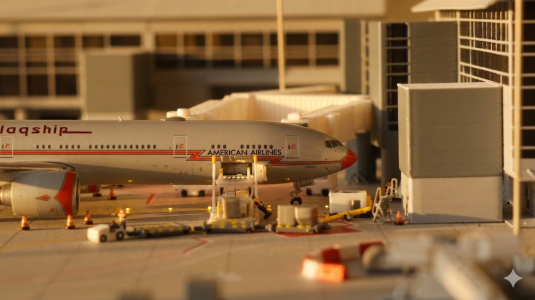
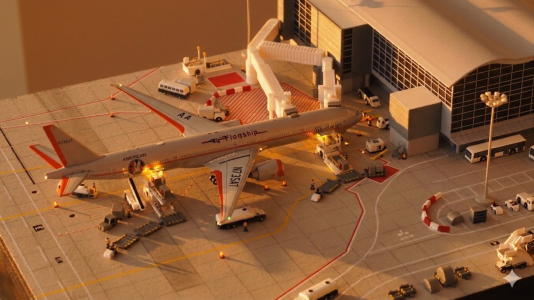
This ones really good in my opinion. I don't know why it decided to backlight it though...
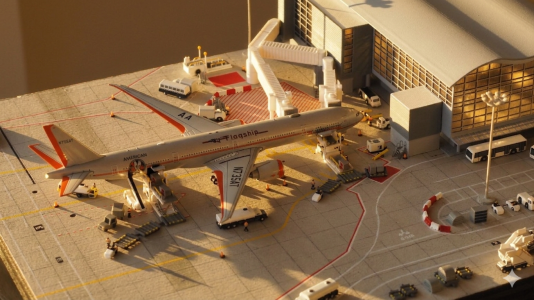
These next three are all also near perfect imo!
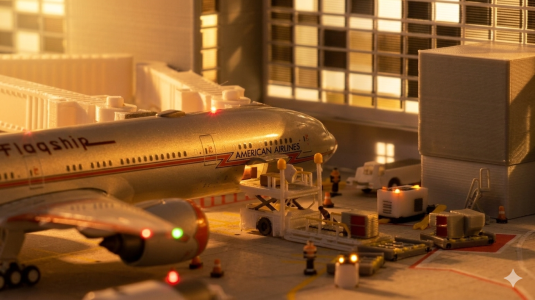
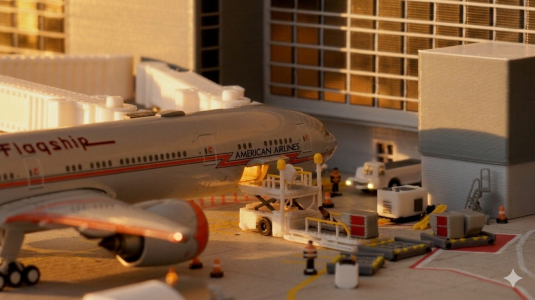
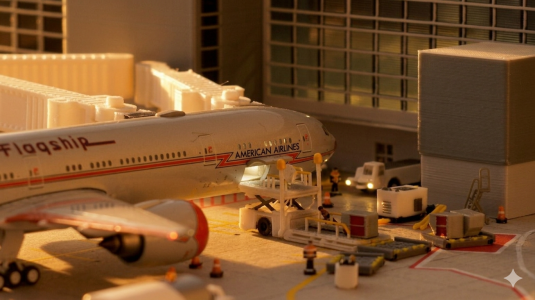
okay enough AI fun for now, back to my usual
Ignore the guy that fell over...I just realized that lol.
This ones really nice, except it ignored my part on not editing the background and added an odd, non existent area of TBIT hahaha.
This ones really good in my opinion. I don't know why it decided to backlight it though...
These next three are all also near perfect imo!
okay enough AI fun for now, back to my usual
BubblesAviation
Well-known member
these look great! I need to try this again. I need to do some more night shots on ironwood. What AI did you use?Here are a few better results after tweaking my prompts a bit more. I added another prompt called "late afternoon" to do most of these which got me some brighter images with the nice "sun color" near golden hour. The still have their quirks though the longer you look...
Ignore the guy that fell over...I just realized that lol.
This ones really nice, except it ignored my part on not editing the background and added an odd, non existent area of TBIT hahaha.
View attachment 77033
View attachment 77034
This ones really good in my opinion. I don't know why it decided to backlight it though...
View attachment 77036
These next three are all also near perfect imo!
View attachment 77037View attachment 77040View attachment 77038
okay enough AI fun for now, back to my usual
bakejobb_23
Well-known member
these look great! I need to try this again. I need to do some more night shots on ironwood. What AI did you use?
same process vsr used above. Google Gemini
BubblesAviation
Well-known member
Used ChatGPT and Claude and it came out badly. Can you give me the prompt you used?same process vsr used above. Google Gemini
Similar threads


- Replies
- 5
- Views
- 625


- Replies
- 14
- Views
- 925